

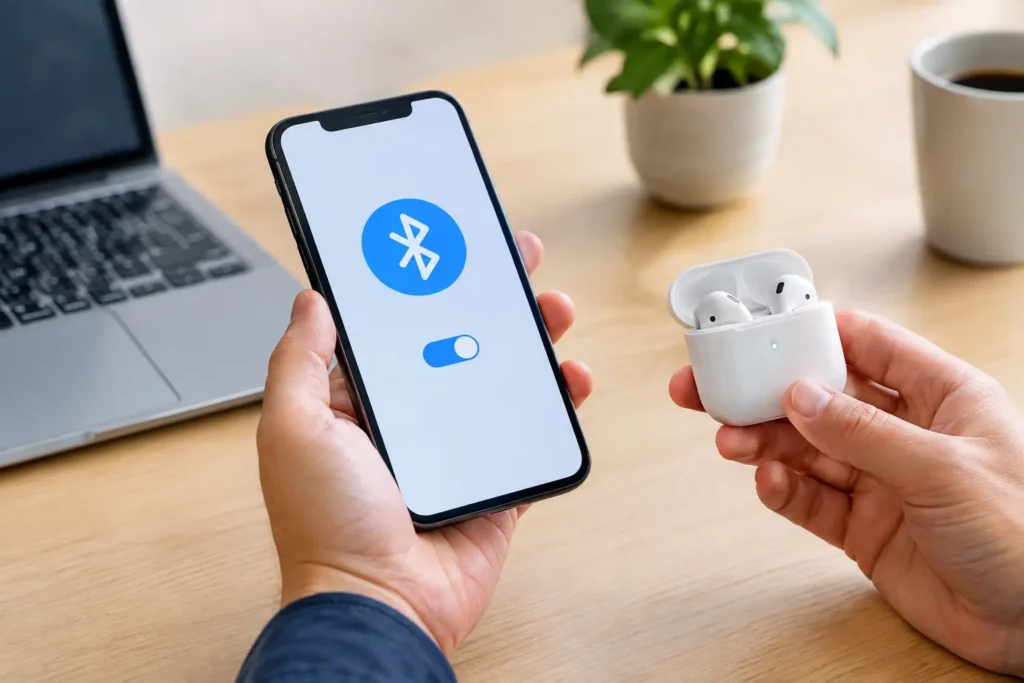
Your earbuds worked yesterday. Now your phone cannot find them, or worse, it finds them but refuses to connect. Before you replace anything, use this order to fix Bluetooth pairing issues. Most problems come down to an old connection record, low battery, the wrong pairing mode, or another device grabbing the connection first.
Bluetooth can feel random because several small things have to go right at once. The good news is that you usually do not need a new phone, new earbuds, or a pricey accessory to solve it.
Start With the Checks That Cost Nothing
First, make sure both devices have enough battery. Low battery does not always shut Bluetooth off completely, but it can make earbuds, speakers, keyboards, and trackers unreliable during pairing. Charge both devices for at least 15 to 20 minutes, especially if the accessory has been sitting in a drawer.
Next, move the two devices close together. Keep them within a few feet during setup. Bluetooth is designed for short-range use, and walls, bags, crowded Wi-Fi environments, and even a car full of electronics can interfere with a weak signal.
Turn Bluetooth off and back on in your phone, tablet, or computer settings. Then restart the main device if it still cannot see the accessory. This sounds basic, but restarting clears temporary software glitches without deleting your saved settings.
Finally, make sure Airplane Mode is off. On some devices, Bluetooth can be manually enabled while Airplane Mode is active, but behavior varies by model. If you are troubleshooting, turn Airplane Mode off so you are not dealing with an extra variable.
Put the Accessory in Real Pairing Mode
A common mistake is assuming that powering on an accessory also puts it in pairing mode. Usually, it does not. If wireless earbuds automatically reconnect to your old phone, for example, they may be unavailable to the new one.
Look for a flashing light or voice prompt that specifically says “pairing.” Many earbuds require you to place both buds in the case, leave the lid open, and hold the case button for several seconds. Speakers often need their Bluetooth button held down. Keyboards and controllers may use a dedicated pairing button or a key combination.
The exact method depends on the product, so the manual can help here. If you no longer have it, look for the model number printed on the case, underside, or charging label. Do not repeatedly tap random buttons. That can change modes, reset settings, or make the troubleshooting process harder to follow.
If the accessory is used, it may still be tied to its previous owner’s device. Ask them to forget it from their phone, or reset the accessory before you try pairing it.
Forget the Old Connection and Pair Again
If your phone or computer sees the device but will not connect, delete the saved Bluetooth record and start fresh. This is one of the most effective ways to fix Bluetooth pairing issues after a phone update, device reset, or repeated failed connection attempts.
On an iPhone or iPad, open Settings, then Bluetooth. Tap the information icon beside the accessory and choose Forget This Device. On Android, open Settings, then Connected devices or Bluetooth. Select the accessory and choose Forget or Unpair. The wording differs by phone brand.
On Windows, go to Settings, Bluetooth & devices, find the accessory, and remove it. On a Mac, open System Settings, Bluetooth, and forget the device from there.
After removing it, restart the phone or computer. Then put the accessory back into pairing mode and connect it as if it were brand new. If you are pairing earbuds, keep them in their case until the instructions say otherwise. Some models only advertise themselves correctly when the case is open.
Check Whether Another Device Is Stealing the Connection
Bluetooth accessories usually reconnect to the last device they used. Your earbuds may be trying to join a nearby laptop, tablet, smart TV, or old phone instead of the device in your hand.
Turn Bluetooth off on nearby devices for a minute, particularly devices you have paired with before. Then attempt the connection again. This is much faster than resetting everything, and it often explains why an accessory shows as connected but produces no sound.
Multipoint earbuds complicate this a little. They can connect to two devices at once, which is convenient for switching between a laptop and phone. But cheaper models sometimes handle multipoint poorly, especially when both devices are actively playing audio or receiving calls. If pairing problems happen often, turn off multipoint in the companion app if available, or use the earbuds with one device at a time.
When Bluetooth Connects but Does Not Work
A successful connection does not guarantee that audio, calls, or controls will work correctly. If your headphones connect but sound still comes from the phone speaker, check the audio output menu. On most phones, this appears in the volume panel, Control Center, or quick settings area. Choose the Bluetooth headphones as the output device.
For call issues, confirm that the accessory is allowed to handle phone calls. Android may show separate toggles for media audio and calls. Windows can also list a headset twice: one option for stereo sound and another for hands-free calling. The hands-free mode supports the microphone but usually sounds worse for music. That is a Bluetooth limitation, not necessarily a defective headset.
In cars, remove old phones from the vehicle’s Bluetooth menu if the system is full. Many factory stereos only save a limited number of paired devices. Then pair from the car’s screen, not only from the phone, and approve any contact-sharing or call permissions you want to use.
Reset the Accessory Only When Basic Steps Fail
A factory reset can solve stubborn issues, but it should not be your first move. It erases saved pairings and may remove custom controls or equalizer settings. It is worth doing when the accessory cannot enter pairing mode, keeps connecting to a device that is no longer nearby, or shows one earbud connected while the other is missing.
Reset steps vary widely. For earbuds, the process may involve holding buttons on both buds, holding the case button, or charging the buds in the case first. For speakers and keyboards, it may require holding the power and Bluetooth buttons together. Follow the instructions for that exact model rather than using a generic reset method from a different product.
After the reset, remove the old listing from every device you plan to use. Then pair it again with just one phone, tablet, or computer first. Confirm it works before adding a second device.
Fix Bluetooth Pairing Issues on Windows PCs
Windows adds a few problems that phones usually avoid. A desktop PC may not have Bluetooth hardware at all, even if it has Wi-Fi. Check Settings and Device Manager to confirm a Bluetooth adapter is present and enabled.
If the adapter exists but pairing fails, restart the PC and install pending Windows updates. Also check the computer maker’s support software for a Bluetooth driver update. Driver updates are worth trying on older laptops, but skip random driver-updater apps. They are often unnecessary, and some push subscriptions or questionable downloads.
A small USB Bluetooth adapter can be a good value if a desktop lacks Bluetooth or an older adapter has poor range. Buy one from a known brand with a clear return policy. The cheapest no-name adapters can work, but inconsistent drivers and weak range are common complaints. Spending a little more is usually worthwhile if you use wireless headphones, controllers, or keyboards every day.
Know When the Problem Is the Product
If the same accessory fails on multiple phones or computers after a reset, the accessory is the likely problem. Watch for signs such as a battery that will not hold a charge, a case that will not charge one earbud, a pairing light that never appears, or frequent disconnects from only a few feet away.
Budget earbuds and speakers can be worth your money, but ultra-cheap models often cut corners on battery quality, antenna design, firmware support, and quality control. A replacement is more sensible than hours of troubleshooting when a low-cost accessory is outside its return window and cannot maintain a basic connection.
On the other hand, if several Bluetooth devices suddenly fail with one phone or laptop, focus on that main device. Install its software updates, test after a restart, and consider resetting network settings as a last resort. Be aware that a network reset usually removes saved Wi-Fi networks and Bluetooth pairings, so save passwords first.
The best approach is simple: change one thing at a time, test it, and stop once the connection is stable. That saves time, protects your settings, and helps you avoid replacing a device that was never actually broken.