

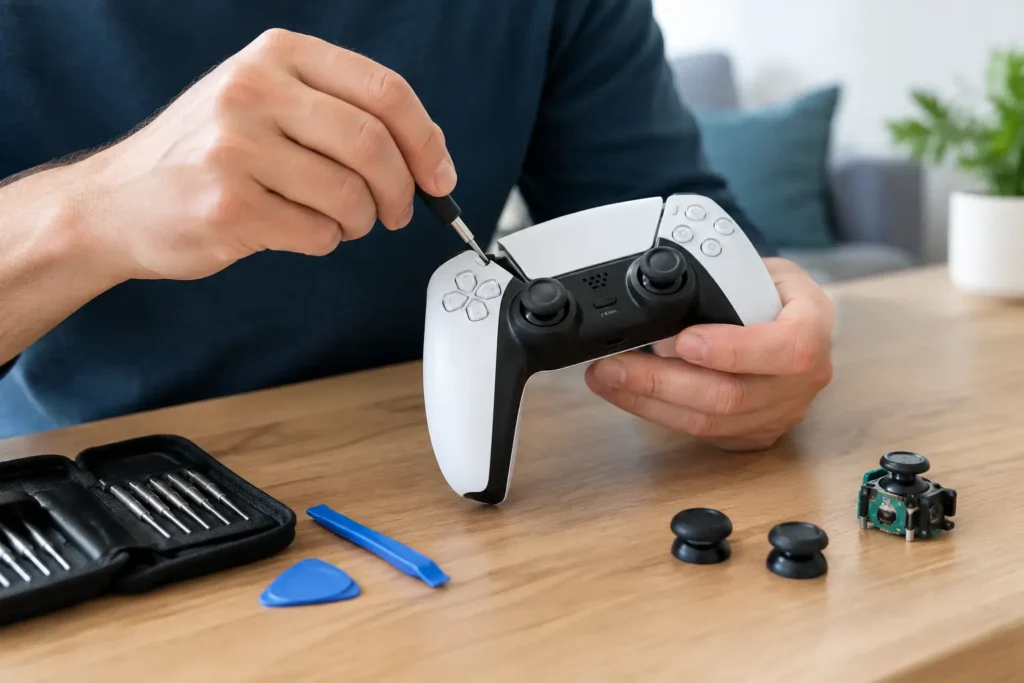
A character walking sideways when nobody touches the stick is more than a minor annoyance. It can ruin a close match, make menus frustrating, and turn a perfectly usable console into a repair bill. The good news is that you can often fix drifting controllers without immediately buying another one. The bad news is that not every drift problem has a cheap, permanent fix.
The sensible approach is to start with the no-cost checks, move to careful cleaning and software fixes, then decide whether repair is actually worth your money. A controller with dirt under the stick may recover quickly. A controller with a worn-out internal sensor usually needs parts or replacement.
How to Fix Drifting Controllers: Start With the Simple Checks
First, confirm that the controller is actually drifting. Test it in more than one game and, if possible, in the console’s menu or controller settings screen. Some games have unusually sensitive stick settings, while a poorly adjusted dead zone can make a healthy controller look faulty.
A dead zone is the small area around the stick’s center position that the system ignores. Raising it slightly can stop minor movement from registering. This is a practical workaround for light drift, especially in games where precise aiming is not a priority. The trade-off is that the stick may feel less responsive around the center, which competitive players will notice.
Disconnect and reconnect the controller, then restart the console or PC. On wireless models, charge the battery or install fresh batteries before testing again. Low power is not a common cause of true stick drift, but connection glitches can sometimes produce odd inputs.
Also check for a controller firmware update. Xbox controllers can be updated through the Xbox Accessories app or console settings. PlayStation controllers can receive firmware updates through the console, and Nintendo Switch controllers update through the Switch settings. Updates will not repair worn hardware, but they can address input bugs and connection issues. They are worth doing before you take anything apart.
Clean the Analog Stick Before You Buy Parts
Dust, skin oils, crumbs, and residue can work their way beneath the analog stick. Cleaning is inexpensive and low risk when done carefully, and it is the best next step for a controller that started drifting suddenly.
Turn the controller off and disconnect it from power. Move the affected stick slowly in every direction while using short bursts of compressed air around the base. Keep the can upright and do not spray continuously. Tilting the can can release liquid propellant, which is not something you want inside a controller.
If that does not help, use a small amount of 90% or higher isopropyl alcohol. Put it on a cotton swab or use a tiny amount at the stick opening, then rotate and click the stick repeatedly. Let the controller dry completely before turning it back on. Do not soak the area, pour liquid directly into the controller, or use water, household cleaners, or WD-40. Those shortcuts can leave residue, damage plastic, or create a bigger problem than the drift.
Cleaning works best when contamination is the cause. If the drift improves for a few days and returns, the internal sensor may be wearing down. That is useful information: more cleaning probably will not be a lasting answer.
Reset and Recalibrate When Your Platform Allows It
A reset can help if the controller’s saved settings or wireless connection are acting up. PlayStation controllers have a small reset button on the back that can be pressed with a pin or paper clip while the controller is off. Afterward, reconnect it to the console with a data-capable USB cable.
Nintendo Switch owners should check the Stick Calibration option in the system settings. This screen can reveal whether a stick is resting off-center and may improve an inaccurate calibration. Follow the on-screen instructions carefully, and do not recalibrate a stick that is physically moving by itself unless the system specifically guides you through it.
On a PC, test the controller in Windows’ game controller settings or within Steam’s controller configuration. You can adjust a dead zone for individual games or controller profiles. This does not repair the controller, but it can be a good value solution for mild drift on an older gamepad.
Xbox does not offer a universal stick recalibration tool for every controller model. If you see guides promising a hidden calibration trick that fixes all Xbox drift, be skeptical. Update the controller, test it in another game, clean it, and then consider repair if the problem remains.
When Cleaning Cannot Fix Controller Drift
Most modern analog sticks use a small potentiometer sensor. Every time you move the stick, internal contacts slide across a track to measure its position. After enough use, that track can wear down. Once that happens, the controller may register movement even when the stick is centered.
This is a hardware problem, not a settings problem. A larger dead zone can hide it, but it cannot restore the worn sensor. Replacing the stick module or its sensor is the real repair.
For an inexpensive third-party controller, paid repair often does not make sense. If labor and shipping cost close to the price of a dependable replacement, skip the repair. Cheap replacement controllers are not automatically good value, though. Many have weak sticks, poor wireless reliability, or compatibility limits that become obvious after the return window closes.
For an official Xbox, PlayStation, or Switch controller, repair can be worthwhile if the rest of the controller is in good condition. Check the warranty first, especially if the controller is fairly new. Opening it before checking coverage can make a warranty claim harder.
Should You Repair It Yourself?
Do-it-yourself repair can save money, but it is not a beginner-friendly project on every model. Some controllers need only a replacement sensor piece, while others require desoldering the entire analog stick module and soldering in a new one. That requires the right tools, steady hands, and patience.
Only attempt a soldering repair if you are comfortable working on circuit boards. A low-cost soldering kit, replacement parts, and a mistake or two can quickly erase the savings. If you have never soldered before, an old broken controller is a better practice project than the controller you use every day.
Hall effect stick replacements are worth considering for certain compatible controllers and handhelds. These use magnets rather than the same friction-based sensor design, so they can reduce the wear that causes conventional drift. Still, do not assume every listing is a bargain. Compatibility varies by controller revision, installation may still require soldering, and poor-quality parts can have their own calibration or fit problems.
Know When Replacement Is the Better Value
Replacing a controller is the practical choice when drift is severe, multiple buttons are failing, the battery is worn out, or the repair costs more than half the price of a reliable replacement. It is also the better option if the controller is cracked, has liquid damage, or has already been repaired once without lasting results.
When shopping, do not choose based only on the lowest price. Confirm that the controller works with your exact console, PC, phone, or handheld. Check whether it supports wireless play, headset audio, motion controls, rumble, and the games you actually play. A bargain controller that loses key features is not always a bargain.
For PC gaming, a wired controller from a known brand can offer better long-term value than the cheapest wireless option. There is no battery to wear out, no wireless pairing trouble, and fewer parts that can fail. For couch gaming, wireless convenience may be worth paying for, but buy from a seller with a clear return policy and test the sticks right away.
Avoid Making Drift Worse
Do not force the stick, pry under the stick cap, or spray lubricant into the controller. Avoid leaving controllers in hot cars, damp bags, or places where food and dust collect. A simple case or drawer keeps debris out and can extend the life of the next controller.
If you use aggressive dead-zone settings to hide drift, revisit them after replacing or repairing the controller. A dead zone that felt necessary on a worn stick can make a new controller feel slow and imprecise.
Controller drift is frustrating, but it does not always mean you need to spend $70 or more today. Test the problem, clean carefully, use software settings when they make sense, and pay for repair only when the numbers work. That is how you keep a small hardware issue from becoming an overpriced purchase.